- Login.
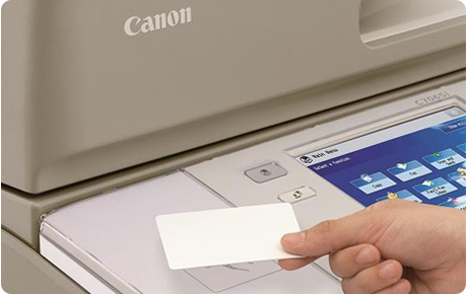
Place your HvA ID card on the card reader next to the user panel and wait until you hear a beep sound.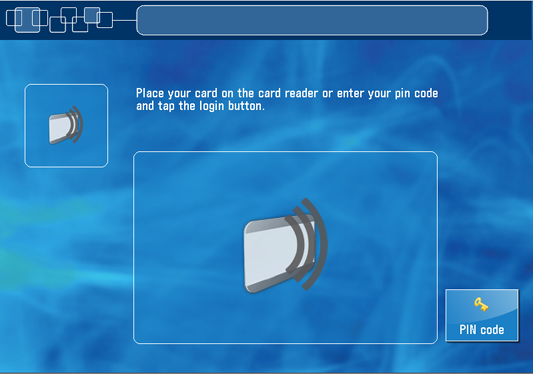
Or, tap on the [pin code] button, enter your pin code and tap on [login].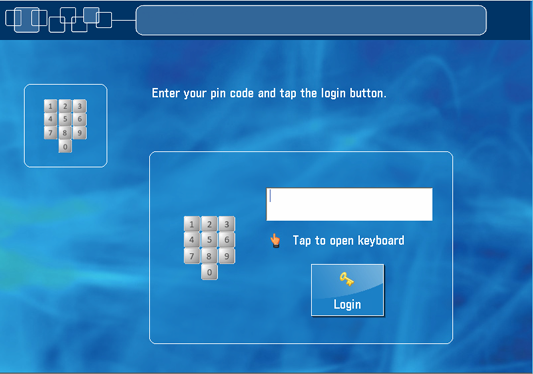
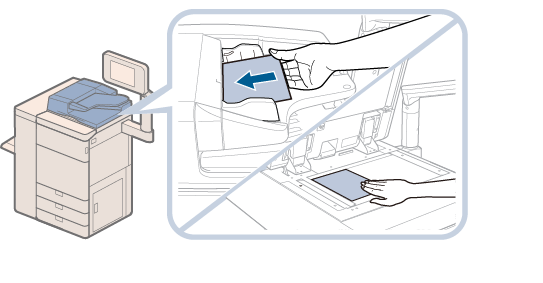
- Place your originals face up in the automatic document feeder or face down on the glass plate.
- On the user panel tap on [Scan].

-
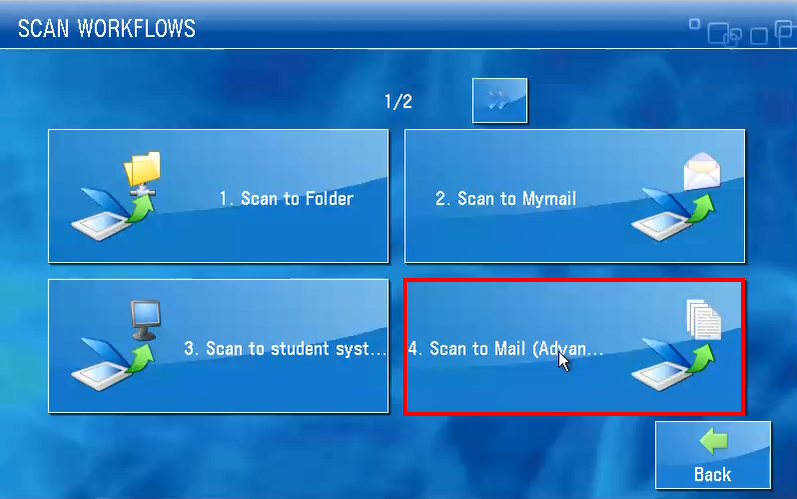
Tap on [Scan to Mail (Advanced)].
-
Set the scan settings and tap on the [Start] button at the top of the touchscreen.

-
Wait until the preview of the scanned document is displayed and tap on [Next].

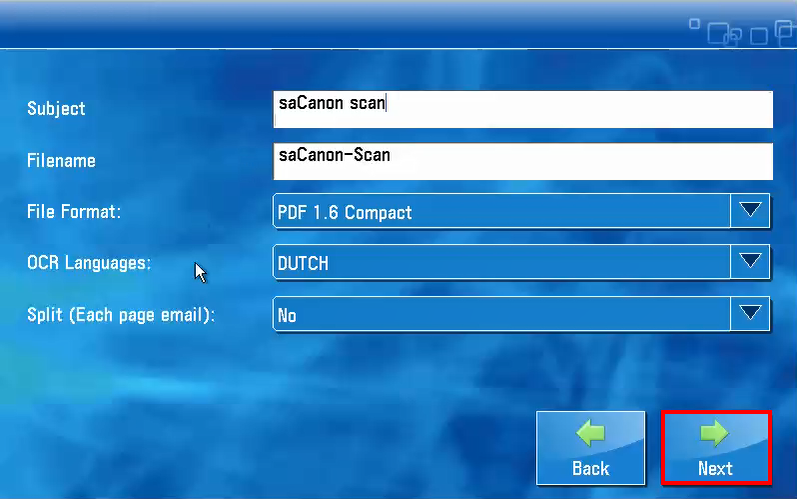
- If necessary, tap on the 'Subject' field or the 'Filename' field to change the default text.
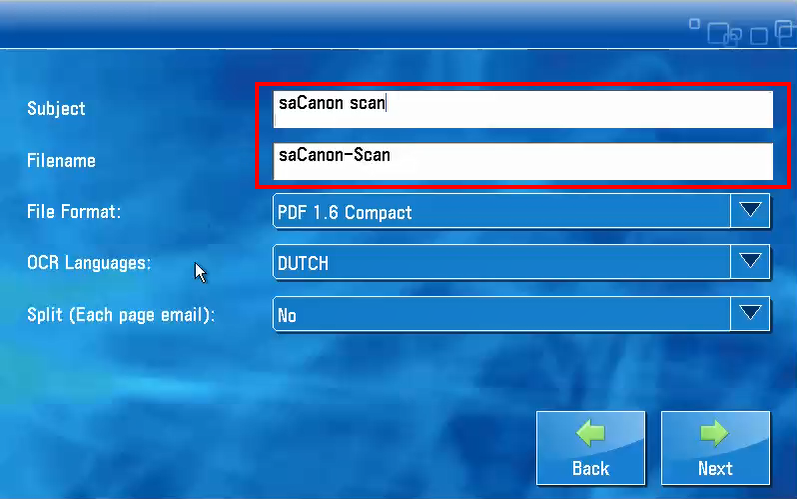
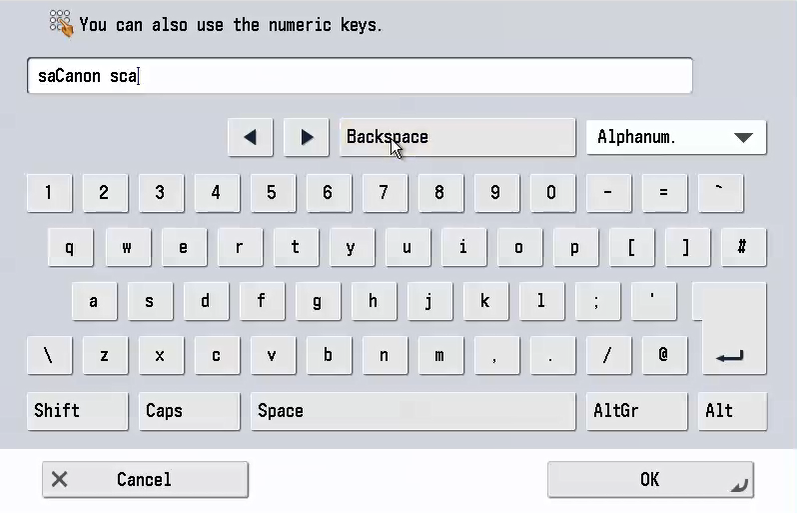
-
From the 'File Format' drop-down list choose the output format for your scanned file.
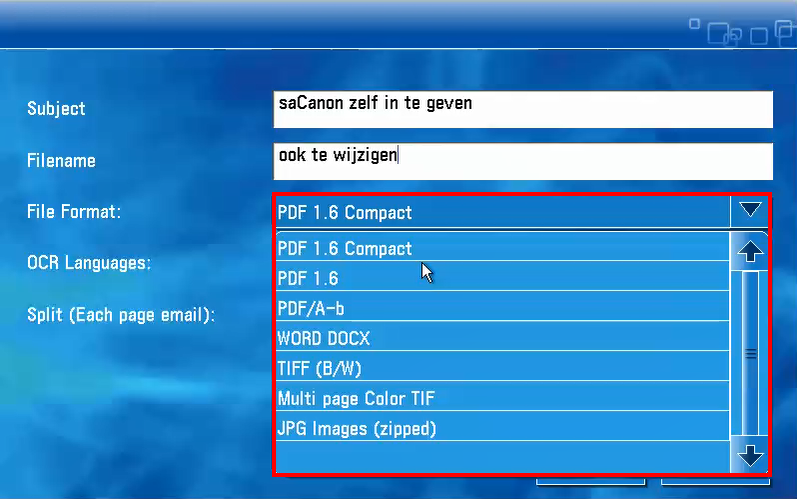
-
From the 'OCR Language' drop-down list choose the language of your scanned document for Optical Character Recognition.
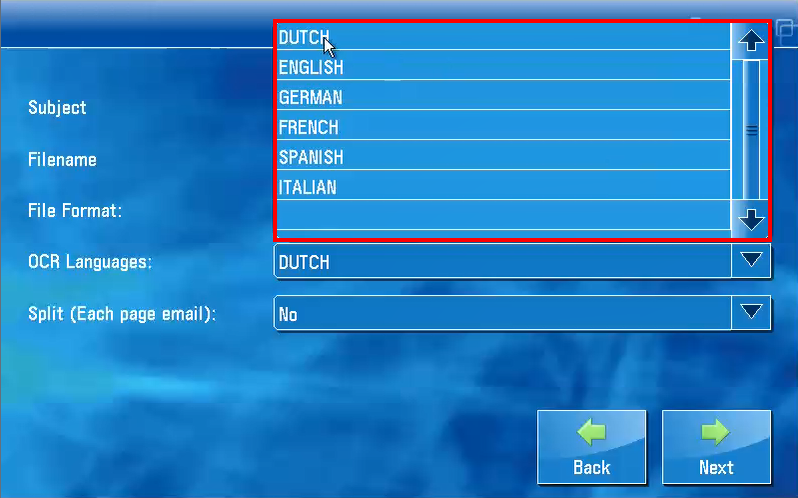
-
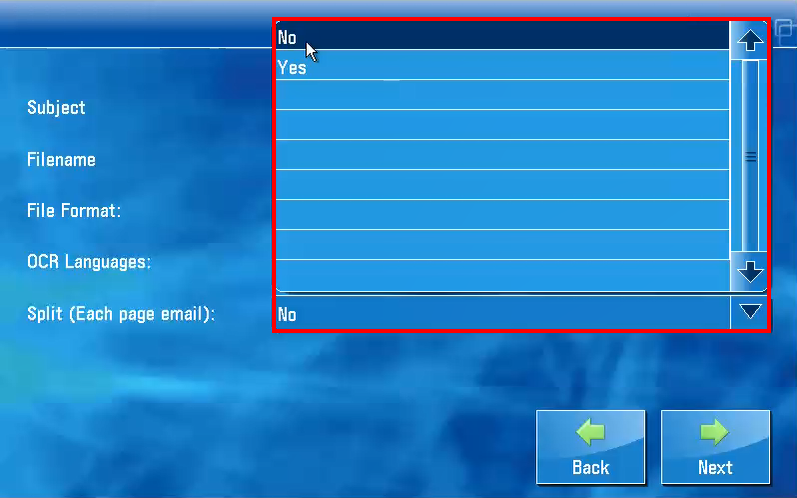
If you want to send each scanned page in a separate email, choose 'Yes' from the 'Split' drop-down list. Otherwise, the complete scanned document will be send by email as one scan file.
-
Tap on [Next].
-
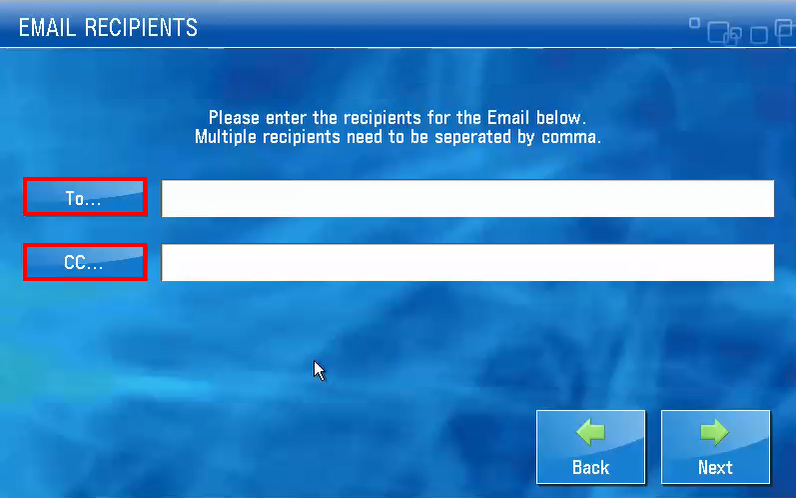
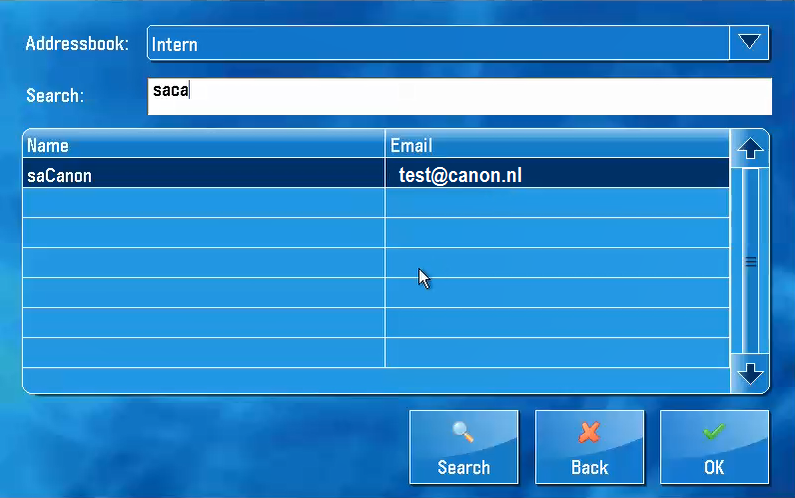
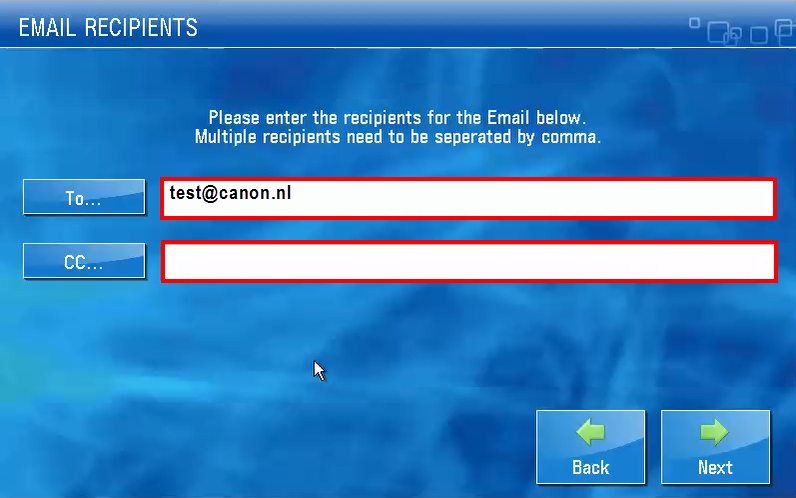
Enter your email recipients. Tap on [To] or [CC] to select an email address form the HvA address book.
-
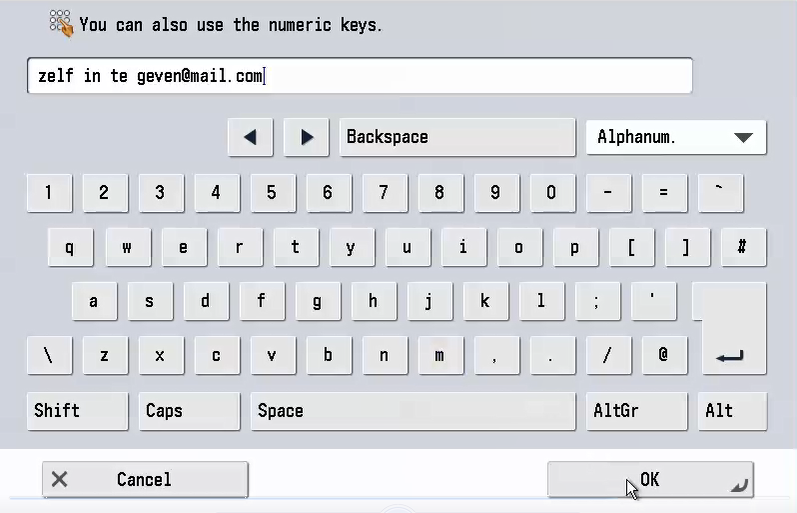
Tap on the text field to enter an email address manually.
-
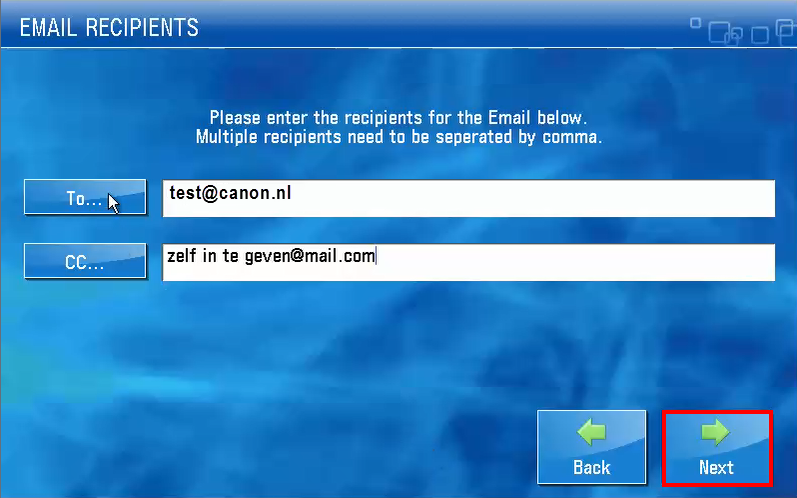
Tap on [Next] to send the scan file or files and return to the start screen.
-
Place your HvA ID card on the card reader next to the user panel and wait until you hear a beep or tap on [Log out].
For employees: scan a document to email with advanced options
