
To print from a UvA workplace as an HvA employee the print server needs to be configured. To do that follow the steps below.
- Go to [Start] and type ‘Credential Manager’ in the search field. Start the Credential Manager.
ATTENTION: When a connection to server canamswapp05.ps1.mycanonprint.nl is already available in Windows Credentials the advise is to remove this connection.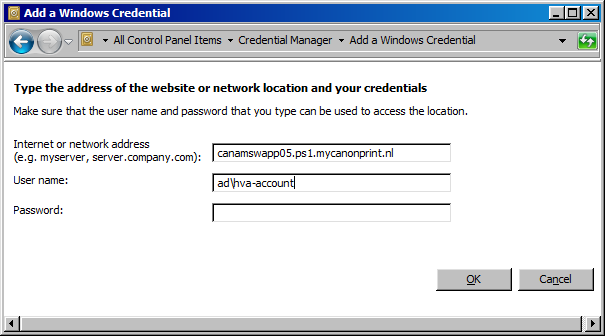
- Click on [Add a Windows credential] to add a new connection.
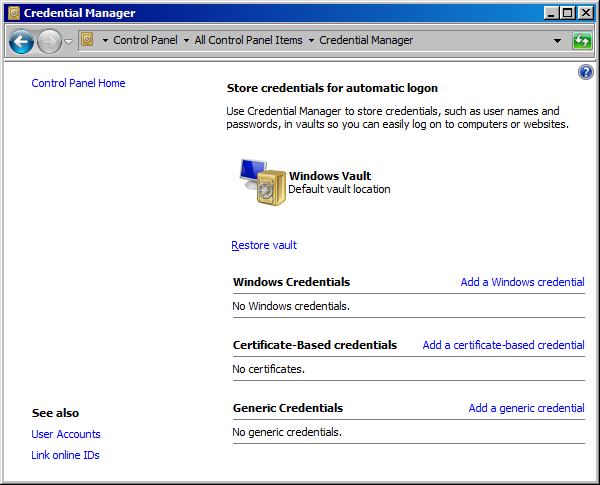
- Enter the following data:
Internet or network address: canamswapp05.ps1.mycanonprint.nl
User name: ad\HvA-ID
Password: Password from your HvA-ID
ATTENTION: In the ‘User name’ field you need to enter your HvA-ID behind ‘ad\’.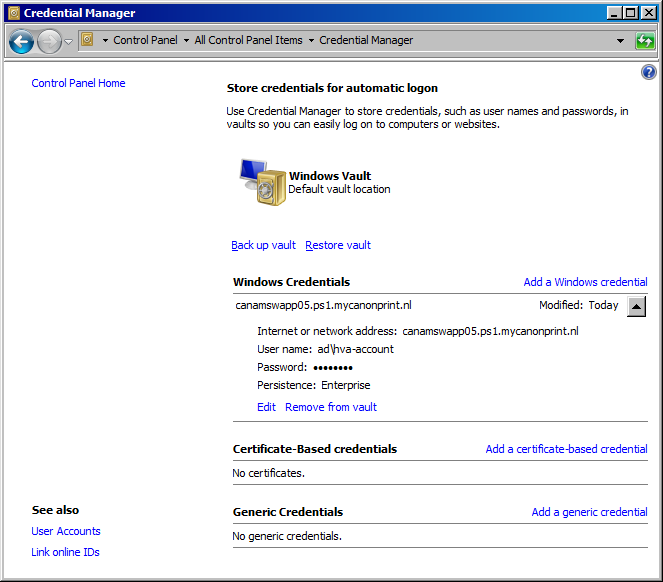
- Click on [OK].
- Restart your computer and log in again.
- You can now print with your HvA-ID and your HvA employee card from a UvA rskaart vanaf een UvA workplace.